Setup and Menus
Sage 200 Menu
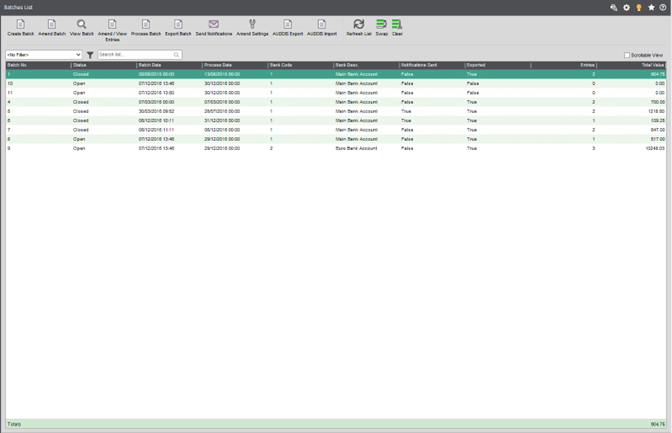
Main Desktop List
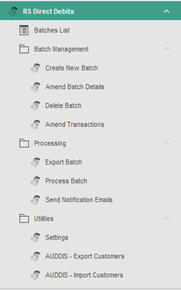
Create New Batch: Screen to create or set up the details of a new batch.
Amend Batch Details: Screen to amend details for an existing batch.
Delete: Screen to allow the user to select and delete a batch from the system.
Amend Transactions: Screen to allow users to maintain transactions included within a batch.
Export Batch Screen to select and export a batch to a selected file format or location.
Process Batch: Screen to select a batch and post or allocate receipts to the sales ledger.
Send Notification Emails: Screen to allow users to send notification emails for a selected batch.
Settings: Screen to maintain various settings for the Direct Debits Module.
AUDDIS—Export Customers—Screen to allow users to create AUDDIS Instructions files for new customers requiring setup with BACS.
AUDDIS: Import Customers: Screen to allow users to quickly flag and import direct debit information for customers via CSV import.
Screens Modifided
Amend Customer Details (Sales Ledger)
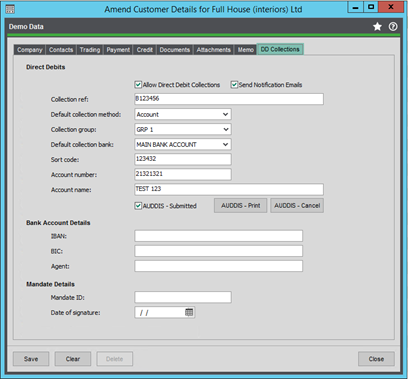
Send Notification: Used to specify if a notification email will be sent to the customer; if not checked, nothing will be sent; if checked, see the screenshot below.
Collection Ref: Needed for the output file.
Collection Method: Not currently in use; leave as direct debit.
Collection Group: Used to group customers for filtering transactions to add to a batch.
Collection Bank: Must be populated; required when filtering transactions.
Sort Code/Acc No/Acc Name: Needed for the output file.
IBAN, BIC, Agent: Needed for the output file. (International Mode)
Mandate Details / Debtor ID: Needed for the output file. (International Mode)
AUDDIS Print / Cancel: Can be used to generate instruction files for BACS (new customers or cancelling customers).
SendNotificationsTo: If the Send Notification Emails option is checked, then the relevant contact will need this role added with the correct email address. This will be used when sending notification emails.

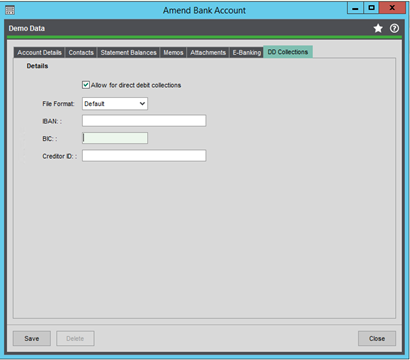
Amend Bank Account (Cash Book)
File Format: Used to specify which output file is used when exporting a batch.
- Default: CSV/BACS Std18 Format for BACS
- Deutsche: SEPA Format for Deutsche Bank
- Danske: CSV Format for Danske Bank
IBAN, BIC, Creditor ID: needed for the output file (international mode)
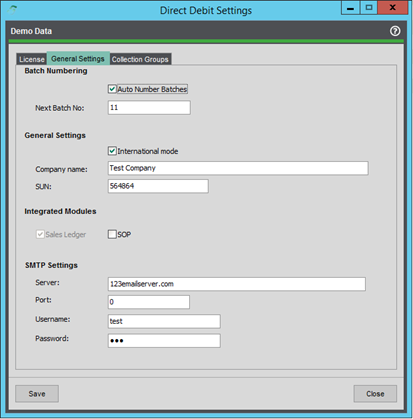
Settings
Batch Numbering: Toggle auto-generation of batch numbers.
General Settings: International Mode will toggle extra controls on the SL account screen. Company/SUN will be needed for output files.
Integrated Modules: SL by default; SOP option should the customer require bespoke integration with the SOP module.
SMTP Settings: Needed for notification emails to work.
Collection Groups: Maintaining collection groups here can be used to make filtering transactions easier and allow more control over batches.
License: Display license information, days remaining, etc.